
Quick answer: Pop-ups and intrusive interstitials are interface elements that appear over or before webpage content; they become intrusive when they obstruct access to that content. Google recommends avoiding unnecessary obstruction and using small promotional banners instead. Legally required gates have exceptions, but their implementation must still preserve search engines’ access to underlying content.
Key facts
- Not every pop-up is an automatic SEO penalty; Google warns that intrusive overlays can obstruct content understanding and hurt search performance. Avoid intrusive interstitials and dialogs
- Google recommends promotional banners occupying a small fraction of the screen, without a numerical size threshold. Avoid intrusive interstitials and dialogs
- Legally mandatory interstitials are exempt from the intrusive-interstitial guidelines. Avoid intrusive interstitials and dialogs
- Redirecting every URL to a shared consent page can remove the underlying pages from search results. Avoid intrusive interstitials and dialogs
- Avoiding intrusive interstitials is recommended, but it does not guarantee a direct ranking boost. Understanding page experience in Google Search results
TL;DR: Replace unsolicited content-blocking promotions with small banners or inline forms, preserve crawler access through mandatory gates, and test the actual experience before deployment.
- Pop-up
- A broad interface term for a message or form that appears separately from the normal page flow, often over existing content.
- Intrusive interstitial
- An intervening full-page experience that obstructs access to the content a visitor came to view.
- Dialog
- An interface element covering part of a page, which can be intrusive when it obstructs the underlying content.
- Mandatory gate
- An access step required by law, such as an age check where legally necessary, rather than an optional promotional interruption.
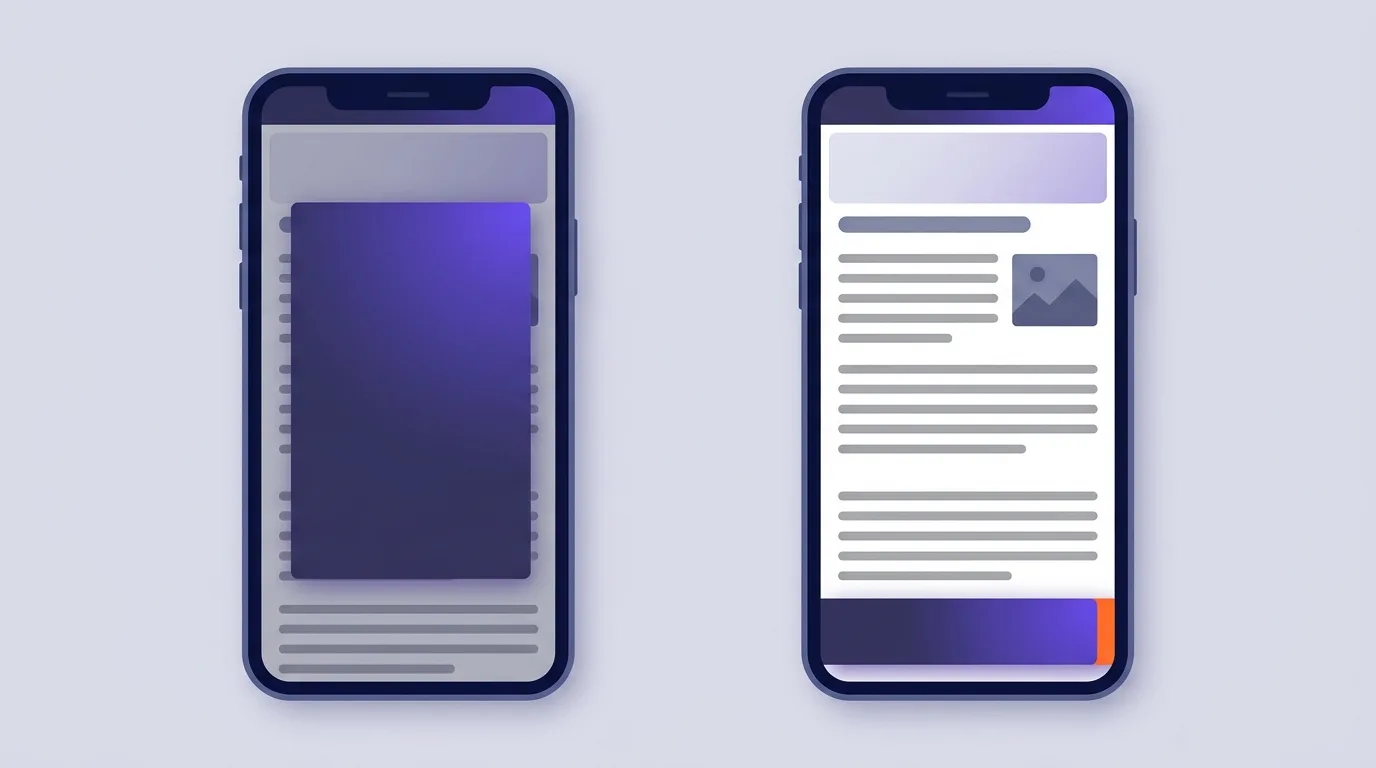
What makes pop-ups and interstitials intrusive?
Pop-ups and intrusive interstitials block access to the content a visitor came to see. The effect matters, not the plugin’s label. An interstitial covers the whole page; a dialog covers only part. Either can block reading or clicks, as Google Search Central explains.
A newsletter prompt or ad can create this barrier. On a small screen, even a modest overlay can leave little room to read.
Compare what the visitor can still access
Ask a simple question: can you read and use the page without first dealing with an unrelated prompt?
| Format | Effect on access |
|---|---|
| Unsolicited newsletter overlay | Interrupts reading if it covers the article, even when called a dialog. |
| Full-page advertisement | Places a screen between the visitor and the content they requested. |
| Small promotional banner | Leaves the article usable if it doesn’t cover text or controls. |
For legally required gates, see the consent and age-gate section below.
A UX audit examines broader usability issues beyond overlays and content access.
How can intrusive interstitials affect SEO?
Intrusive overlays can block reading and make a page harder for search engines to understand. Google warns that this can lead to poor search performance. It doesn’t say that every pop-up causes an automatic sitewide penalty: Google Search Central.
Separate historical signals from current guidance
On January 10, 2017, Google introduced a mobile-search ranking signal. Pages could rank lower if visitors arriving from mobile search couldn’t easily reach the content. See Google’s announcement.
Google’s current page-experience guidance still recommends avoiding intrusive interstitials. It says page-experience aspects beyond Core Web Vitals don’t directly help sites rank higher. Core Web Vitals measure page performance; they don’t tell you whether an overlay blocks the text.
Assess access, not assumed penalties
Remove needless prompts so visitors can read and use your page, not because you expect a ranking gain. A change in bounce rate or time on site doesn’t prove how Google ranks the page.
Google algorithm updates and spam policies provide broader context for ranking changes and enforcement.
Choose formats that leave the content accessible
You can show an offer without putting a screen between visitors and the content they want.
- Start with an inline form. Place the offer in the page’s normal reading flow, where it fits the content.
- Otherwise, choose a compact banner. Google recommends a banner that takes up a small fraction of the screen instead of a full-page promotion. It gives no numeric size limit: Google Search Central.
- Check what blocks the page in total. A sticky header and a bottom banner may each look small but leave little space between them. Test them together.
- Make optional offers easy to dismiss. Keep the close control visible and easy to use on narrow screens.
If you use a modal dialog, follow the W3C modal-dialog pattern:
- Move keyboard focus into the dialog when it opens.
- Keep Tab navigation inside it while it’s open.
- Let the Escape key close it.
- Include a visible close or cancel button in the tab order.
- When it closes, generally return focus to the control that opened it.
See web accessibility for implementation details. For offer wording, see calls to action.
How should mandatory consent and age gates work?
Some gates are required by law. Google exempts those gates from its intrusive-interstitial guidelines, but not every consent request or age prompt qualifies. Where possible, place the gate over the page content rather than send visitors elsewhere, as Google recommends.
Which laws apply depends on your site and audience. Don’t remove a legally required gate just to make the page easier to use.
- Keep each page available. Don’t redirect every URL to a shared consent page. Googlebot may then fetch only that destination, which can cause the other pages to drop out of search results. See Google’s redirect warning.
- Verify crawler access for required adult age gates. Google recommends checking that a request really comes from Googlebot, then letting that verified crawler reach the content without the gate. A Googlebot user-agent string alone isn’t proof. This advice is specific to required adult age gates, not all access controls: Google Search Central.
For the difference between fetching a page and including it in search, see crawlability and indexability.
Common mistakes and false safety rules
A trigger or close button doesn’t prove that a pop-up leaves the page usable.
- A delay doesn’t fix a blocked page. A prompt can still interrupt reading if it appears after a scroll or when someone moves to leave.
- A close button isn’t a cure. A large, unrequested offer still gets in the way. Don’t make visitors scroll or swipe to find its close control.
- Smaller isn’t always usable. Shrinking a desktop overlay can leave its controls out of reach on a phone. Check this as part of mobile optimization.
- Vendor labels aren’t evidence. Don’t accept a universal “SEO-safe” size or delay based on a plugin’s sales copy. Test what the visitor can reach.
For the ranking distinction, refer back to “How can intrusive interstitials affect SEO?”
Check the real overlay experience before release
Test the page as visitors will use it, not just how it looks on first load.
- Test different visit states. Open search landing pages on narrow and wide screens. Try a fresh session, then return after saving a consent choice or dismissing an offer.
- Trigger every promotion. Wait for delayed prompts. Scroll down and test exit-intent offers too, because an initial screenshot may miss them.
- Inspect the interaction. Use Chrome DevTools Device Mode as well as real devices. Check whether you can read the text and reach the close control. After closing an overlay, make sure the page scrolls. Test keyboard use against the dialog checks above.
- Add supporting diagnostics. Lighthouse or PageSpeed Insights can flag other page issues, but neither certifies interstitial compliance. Broader device checks belong in mobile optimization.
- Check gated URLs. Apply the destination and crawler checks in the mandatory-gates section. Use Search Console URL Inspection to investigate what Google can access, not to approve the visitor experience.
Measure whether the replacement improves the experience
Say you run an online furniture shop. A newsletter overlay covers the product details before visitors can read them. Compare it with an inline sign-up form below those details, keeping the offer and wording the same so the format is the main change.
Track more than sign-ups. You need to know whether visitors can still complete the task that brought them to the page. For each version, record:
- Whether the offer was shown or reached.
- Whether visitors dismissed it, where that option exists.
- Whether they completed the sign-up.
- Whether they completed the page’s main task, such as adding the item to their basket.
Compare visits under similar conditions. An inline form farther down the page may get fewer views, so raw sign-up totals won’t tell you the whole story. Ask visitors what they couldn’t reach or finish; analytics alone can’t explain why they stopped.
Watch organic landing-page traffic after the change, too. Check for shifts in demand or other site changes before attributing a rise or fall to the new format.
For the ranking distinction, refer back to “How can intrusive interstitials affect SEO?”
For definitions and interpretation, see user engagement metrics. For tracking setup, see Google Analytics 4 for SEO.
Frequently asked questions
Are dialogs opened by a visitor’s own click treated like unsolicited promotional pop-ups?
A dialog opened by a visitor’s click serves a requested action rather than pushing an unasked-for offer. Keep it tied to that action and make it easy to close. The click alone doesn’t exempt it from scrutiny: assess what it blocks, using the content-access test above.
Are paywalls and login screens covered by the same guidance as promotional interstitials?
Paywalls and login screens restrict access to content; promotional overlays advertise an offer. Don’t treat them as the same thing. That difference isn’t a blanket exemption for any blocking screen, though. For the search-access concern, refer back to the SEO section.
Should a promotional pop-up reappear after a visitor has dismissed it?
Dismissal tells you that a visitor wants to continue without the offer. Respect that choice rather than reopening the same pop-up as they browse. If they need the offer later, give them a way to open it themselves. For an offer that stays visible, use the banner approach described above.