
Quick answer: Web accessibility means designing and developing websites so people with disabilities can perceive content, navigate, interact, and contribute. It includes keyboard operation, meaningful text alternatives, readable contrast, accessible forms, and compatible assistive technology. WCAG provides testable requirements, but evaluating accessibility also requires manual checks and feedback from people with disabilities.
Key facts
- Accessibility enables people with disabilities to access, navigate, interact with, and contribute to the web. Introduction to Web Accessibility
- WCAG 2.2 Level AA requires all applicable Level A and AA criteria, or a conforming alternate version. Web Content Accessibility Guidelines (WCAG) 2.2
- Purely decorative HTML images need an empty alt attribute, not descriptive alt text. Decorative Images
- AA text contrast requires at least 4.5:1 for normal text or 3:1 for large text, with specified exceptions. Understanding Success Criterion 1.4.3: Contrast (Minimum)
- WCAG 2.2 AA pointer targets must be at least 24 by 24 CSS pixels unless a specified exception applies. Understanding Success Criterion 2.5.8: Target Size (Minimum)
TL;DR: Build accessibility into content and components, then verify essential user journeys with automated checks, keyboard and screen-reader testing, and feedback from people with disabilities.
- WCAG
- The Web Content Accessibility Guidelines are W3C recommendations containing testable requirements for accessible web content.
- Assistive technology
- Software or hardware, such as a screen reader or switch device, that helps people with disabilities use digital content.
- Accessible name
- The programmatically determined label that assistive technology uses to identify an interface element.
- Keyboard focus
- The current interface location that receives keyboard input, normally indicated by a visible focus marker.
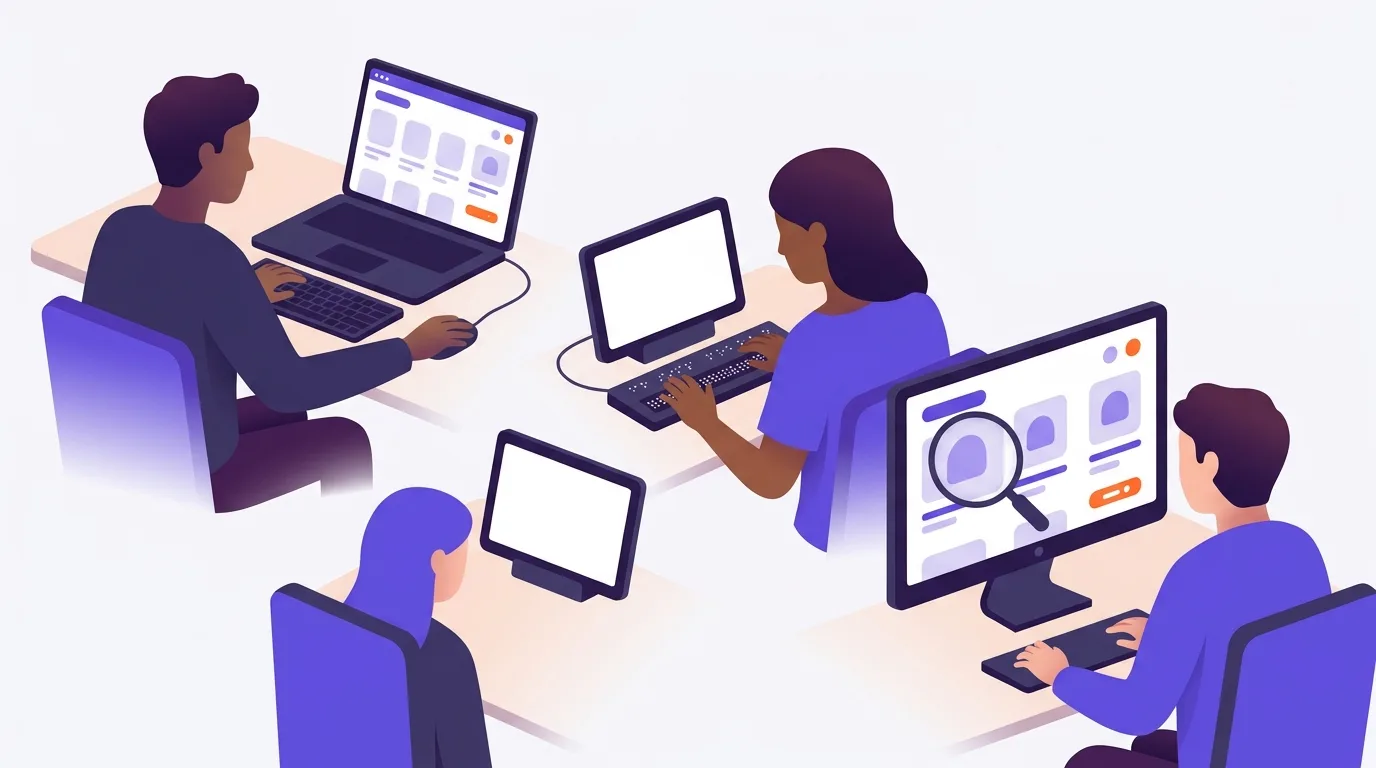
What is web accessibility?
Web accessibility means building websites that people with disabilities can use. Someone should be able to read your content or place an order even if they can’t see the screen or use a mouse. W3C’s definition covers both using the web and contributing to it.
Access needs vary. Not everyone with a disability uses special software or devices:
- Visual needs: A person with low vision may enlarge text to read a product description.
- Hearing needs: Someone who can’t hear a video needs captions to follow its speech and key sounds.
- Motor needs: A person who can’t use a mouse may use a keyboard to complete checkout.
- Cognitive needs: Clear steps can help someone finish a form without losing their place.
The principles of accessible websites
The Web Content Accessibility Guidelines, or WCAG, set out requirements for web access. Their core principles ask whether:
- People can perceive the content, such as reading text or hearing an audio alternative.
- People can use the controls, including without a mouse.
- The content and controls make sense.
- The code works with browsers and assistive technology, such as software that reads a page aloud.
Accessibility overlaps with user experience (UX), but it focuses on barriers faced by people with disabilities. Test real tasks, not just a tool’s score.
Why does web accessibility matter for SEO?
Search visibility isn’t much use to a visitor who reaches your page but can’t use it. Accessibility work addresses those barriers. It isn’t proof of better rankings.
Image descriptions show where the work can overlap. Alternative text, often called alt text, gives an image a text equivalent. Google uses it with image analysis and page content to understand images, according to Google Search Central. That connection to how search engines work doesn’t turn alt text into a place to pack keywords.
Write the information a reader needs. Don’t treat WCAG conformance or an accessibility score as a confirmed ranking factor. Search performance and access need separate checks.
Choose a WCAG conformance target
A conformance target states which WCAG requirements you aim to meet. Use WCAG 2.2 Level AA as the technical baseline for the checks below.
Meeting that target means satisfying all Level A and Level AA requirements, or providing a conforming alternate version, under W3C’s conformance rules. A high average score isn’t enough.
Check whole pages and complete tasks. For a shop, that means following checkout through payment and order confirmation, not just testing the “Buy” button. Don’t assume a separate text-only page is a valid alternate version; it must meet the conformance rules too.
A technical target isn’t a legal verdict. The sources here support technical guidance, not a finding about your legal duties. Check current official guidance for your location and service, and seek legal advice where needed.
You can include this work in a broader UX audit, but record the accessibility findings separately so they don’t get lost among general design preferences.
Make images, media, and content understandable
Choose alternatives by purpose
Ask what the image does on that page. A product photo may need text that describes a feature, such as a chair’s curved back. An image used as a button needs an action name, such as “Search,” rather than a description of a magnifying glass.
A purely decorative HTML image should use an empty alt attribute: alt=””. That lets assistive technology ignore it, as W3C explains. Leaving out the attribute isn’t the same thing.
For a chart, put its key finding and data in nearby text or a fuller text alternative. Don’t squeeze the whole chart into a short description. When you work on image optimization, keep these access needs alongside image-search goals.
Provide captions and audio alternatives
A recorded video with audio needs captions that match the timing of the sound. Include key sounds as well as speech. The WCAG caption requirement has an exception for media that is clearly labeled as an alternative to text.
Have a person check automatic captions. In a repair video, a wrong tool name can make a step hard to follow. A transcript lets someone read the audio content, but it doesn’t replace timed captions.
If the video shows an essential step that the speaker never describes, add audio description. You can plan these alternatives while doing video SEO, rather than waiting until the video is published.
Keep structure and instructions clear
Use a meaningful heading structure so readers can find the section they need. Write “Choose delivery” rather than “Click the green box on the right.” The task should still make sense when someone can’t see the color or layout.
Make controls and forms work without a mouse
Start with standard HTML buttons and form fields. They provide useful behavior that custom controls may lack. ARIA adds information for assistive technology; adding an ARIA role alone doesn’t make a control work by keyboard.
Follow a task with the keyboard
Try submitting your contact form without touching the mouse. Tab should move through controls in a sensible order. A visible focus mark should show where you are, and you shouldn’t get stuck in a menu or field.
Check Enter for links and Enter or Space for buttons. Some controls use arrow keys. Under the WCAG keyboard requirement, functions must work without precisely timed keystrokes, except where the task depends on the path of movement, such as freehand drawing.
When a dialog opens, move keyboard focus inside it. When it closes, return focus to the control that opened it. Site content must not entirely hide the focused control under the WCAG focus requirement. Check whether a sticky header covers the field you’re trying to edit.
A keyboard-friendly menu still needs clear labels. Good site architecture and navigation can help someone find the returns page without guessing which menu to open.
Make form feedback usable
Give each field a visible label and connect that label to the field in the code. Placeholder text alone disappears as someone types. If an email address is invalid, explain the error in text and make sure a screen reader can detect it.
Use clear calls to action too. “Pay now” tells a shopper more than “Continue” when the next click submits payment. Don’t make essential help available only when a mouse hovers over a control.
For touch and mouse use, WCAG’s minimum target-size rule calls for at least 24 by 24 CSS pixels. Defined exceptions cover spacing and certain types of controls, so it isn’t a blanket button-size rule. Check small controls such as a cart’s remove-item icon against the full rule.
Support contrast, resizing, and user control
Make text and status cues easy to see
Contrast is the difference between text and its background. Pale gray delivery details on white may be hard to read. WCAG Level AA requires text contrast of at least 4.5:1, or 3:1 for large text. The rule defines large text by font size and weight, and has exceptions for incidental text and logos.
Use a tool such as WebAIM Contrast Checker to check your color pairs. A color-scheme switch doesn’t replace a readable default. For broader font choices, use the guidance on readability and typography.
Don’t rely on color alone to signal a problem. A red border around a payment field needs a text error that explains what to fix.
Check enlarged text and narrow layouts
Reflow means content rearranges to fit the space available. Enlarge the page and check a narrow window: can you still read the delivery options and reach the submit button?
Relative font units can help text scale, but the unit alone doesn’t prove access. Pixel units aren’t automatically a barrier either. Judge what happens when you resize the page.
Let people control motion and sound
A moving promotion shouldn’t rush someone who needs more time to read. Provide pause or stop controls where needed. Give users a way to stop or mute audio that starts on its own, respect reduced-motion settings, and avoid harmful flashing.
If a promotion appears over the page, check that people can close it and resume their task. Review pop-ups and intrusive interstitials for their separate search concerns.
Avoid accessibility shortcuts that leave barriers
Recognize failures that look like fixes
Use the image and media checks above for alternatives.
Follow the controls section above for usable forms.
Treat a passing scan as partial evidence
An automated scan finds only some barriers. A clean report doesn’t prove WCAG conformance or show that someone can complete checkout. Use manual tests and feedback from people with disabilities as well.
Assign access checks in your content workflow. For example, name who checks captions before a video goes live and who fixes a reported form error. New content can introduce barriers even when the template hasn’t changed.
How do you test and monitor web accessibility?
Start with a task your visitors need to finish, such as booking an appointment. Test the shared parts of the site as well as the booking form. Include the error state, not just a successful submission.
A repeatable testing cycle
- Set the scope. Choose key tasks and the page templates they use. Include embedded services such as payment tools.
- Scan and inspect. Use a tool such as axe or WAVE, then inspect each finding before assigning a fix.
- Test by hand. Apply the keyboard and visual checks above. Use a screen reader such as NVDA or VoiceOver to check whether field names and errors make sense when read aloud. A novice spot check isn’t a substitute for skilled evaluation.
- Include disabled users. Ask testers to attempt relevant tasks, and provide an accessible way for visitors to report barriers. User feedback complements technical checks; it doesn’t replace them.
- Record and retest. Describe the barrier and how to reproduce it. Record the relevant WCAG requirement, assign an owner, and verify the fix. Check again after changes that could bring the problem back.
Fix blocked tasks and defects in shared controls first. If the booking form rejects a date but doesn’t announce the error, record that specific failure rather than “form needs accessibility work.” The developer needs enough detail to reproduce it.
A broader UX audit may reveal other reasons people struggle with booking. Track those findings alongside access barriers, while keeping SEO KPIs separate: search traffic doesn’t show whether someone can use the form.
Frequently asked questions
Does meeting WCAG establish legal compliance?
No; see the distinction between technical targets and legal duties above.
Do downloadable PDFs need accessibility checks?
Yes. A PDF can block access just as a web page can. Give it meaningful headings and check its reading order. Make sure links have clear text and informative images have text alternatives. If it includes forms or tables, test those too. This is technical advice, not a decision about a document’s legal status.
Can an accessibility overlay replace fixes to a website’s code?
No. An overlay is added software intended to change how people use a site. Treat it as an extra feature, not a replacement for fixing barriers in the site itself. Test the affected task after a fix; the presence of an overlay isn’t evidence of conformance.
How should you handle accessibility barriers in third-party widgets?
Include embedded tools, such as booking forms, in your tests. Tell the vendor exactly where the task fails and ask for a fix. Retest the update. If the barrier remains, replace the tool or provide an accessible way to finish the same task while you resolve it.
Sources
- Introduction to Web Accessibility
- Google image SEO best practices
- WCAG 2 Overview
- Web Content Accessibility Guidelines (WCAG) 2.2
- Decorative Images
- Understanding Success Criterion 1.2.2: Captions (Prerecorded)
- Web Content Accessibility Guidelines (WCAG) 2.2
- Web Content Accessibility Guidelines (WCAG) 2.2
- Understanding Success Criterion 2.5.8: Target Size (Minimum)
- Understanding Success Criterion 1.4.3: Contrast (Minimum)