
Quick answer: Header tags are HTML heading elements, from <h1> to <h6>, that identify a page’s headings and nested sections. They help readers scan content and assistive technologies navigate it. Use descriptive wording and logical heading levels, separating structure from visual styling; heading order is not a Google ranking requirement.
Key facts
- HTML provides six heading levels, from <h1> to <h6>. Headings and sections
- Headings communicate page organization and support assistive-technology navigation. Headings
- Google says heading order does not matter for Search; semantic order still benefits accessibility. Search Engine Optimization (SEO) Starter Guide
- Google specifies no ideal number of headings per page. Search Engine Optimization (SEO) Starter Guide
- Google recommends using relevant search language in the main heading. Google Search Essentials
TL;DR: Build a descriptive heading outline that reflects the content’s hierarchy, implement it with semantic HTML, and check the rendered page rather than chasing heading-count or ranking formulas.
- Heading element
- An HTML element from <h1> to <h6> that identifies a heading and its rank in the page structure.
- Heading hierarchy
- The relationship between headings that introduces sections and nests subsections by rank.
- Semantic markup
- HTML that communicates an element’s meaning or role rather than only its visual appearance.
- <header> element
- An HTML container for introductory or navigational content, distinct from the heading elements it may contain.
What are header tags?
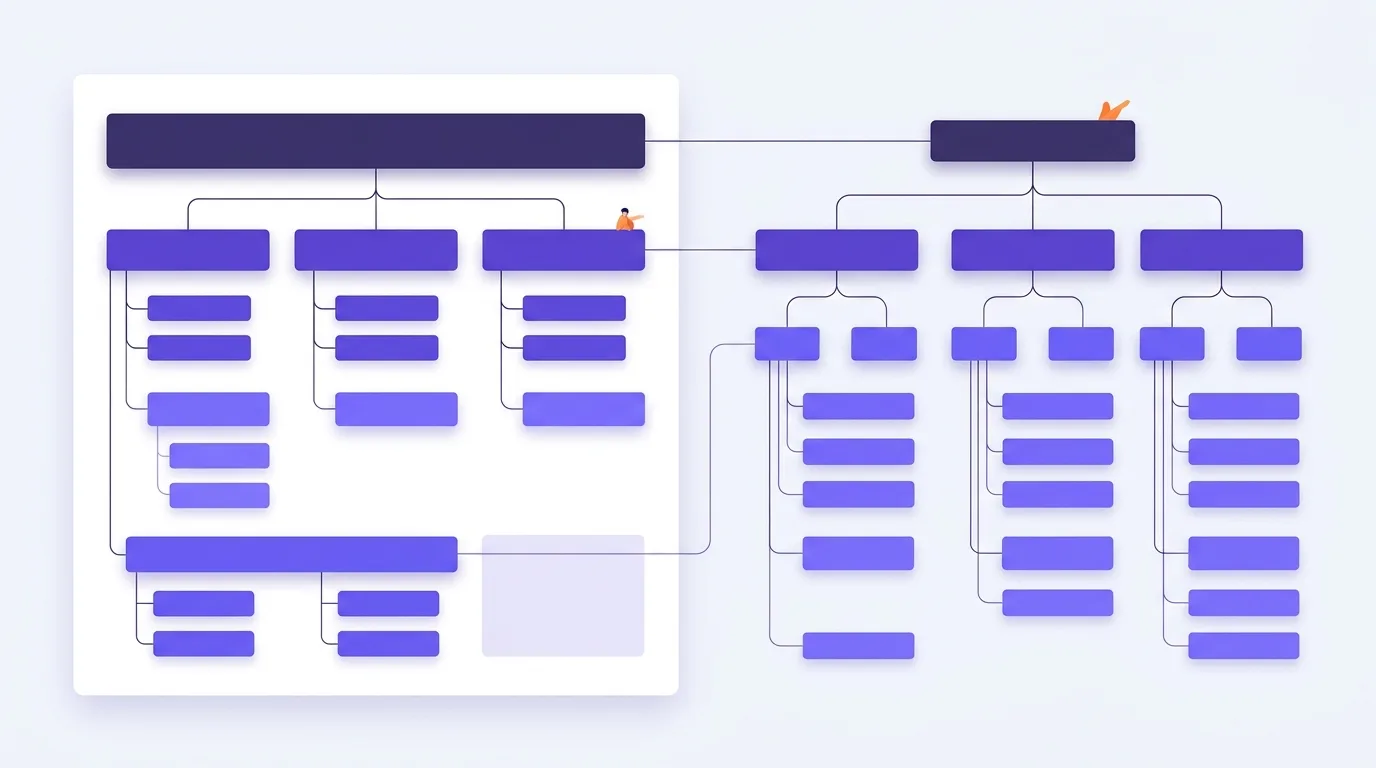
Header tags are HTML heading elements that label and organize page content. They range from <h1>, the highest rank, to <h6>, the lowest rank (web.dev). They mark the main topic, sections, and subsections. They give readers a clear outline, rather than just making text look larger.
Heading hierarchy shows structure. A typical page has a main heading, then section headings and nested subsection headings. This is a useful pattern, not a rule for valid HTML. Rank shows a heading’s place in the page, not its SEO weight.
HTML structure and visual style have different roles. Use heading elements to mark headings and CSS to control how they look. Bold or large text alone does not tell screen readers that it is a heading (web.dev). A heading’s rank does not require a set font size.
Despite their similar names, <header> and <head> are not headings. The <header> element groups introductory content. The <head> element holds page metadata.
An on-page heading labels visible content. The HTML <title> element names the page for browser tabs and can inform search-result titles. See title tag guidance.
Why do headings matter for users and SEO?
Headings split a long page into clear sections. They help readers scan for useful text instead of reading every line. They also let screen-reader users move between sections, as described by W3C. Their value lies in clear structure and navigation, not a ranking benefit from heading order.
Clear labels tell readers what they will find below them. On a delivery page, “Delivery costs” and “Track your order” are more useful than “Useful information.” Readers can find the answer they need and skip other sections.
Heading navigation is one part of web accessibility. This wider field covers ways to make content usable for people with disabilities.
Semantic structure is not a ranking rule
Logical heading order shows how sections relate to each other. Google says heading order does not matter for Google Search. Still, a meaningful order helps screen-reader users (Google SEO Starter Guide).
Headings can inform search-result titles
Google can use headings to create search-result title links. It can also use the page’s title element and other sources (Google Search Central). See title tags and title-link guidance for more detail.
Build a logical heading hierarchy in HTML
A logical heading hierarchy shows how sections fit together. Choose each heading level based on its role in the page.
- Set a clear structure. A useful default is a main H1 for the page topic, H2 for main sections, and H3 for their subsections. This follows the ranks described by web.dev. The mistakes section explains why this is a convention, not an SEO threshold.
- Nest subsections without skipping ranks. You can return to a higher-level heading when a subsection ends, as W3C explains. Use deeper ranks only when the content needs more divisions. You do not need to use every level.
This bicycle-maintenance example shows how the sections relate:
<h1>Bicycle maintenance</h1>
<h2>Tire care</h2>
<h3>Pressure checks</h3>
<h3>Puncture checks</h3>
<h2>Chain care</h2>
Chain care starts a new main section. It is not part of the tire-care section.
Use heading markup in your CMS. Select a section label and choose the heading level that fits its role. Check that the CMS creates an HTML heading, not just bold text. Use CSS to style it instead of choosing a rank for its default size, following web.dev’s guidance.
Web accessibility addresses access needs beyond heading structure.
Readability and typography covers font size, spacing, and other visual choices.
Write headings that describe the content beneath them
Write header tags that clearly describe the page’s subject and each section’s content.
- Make the main heading a useful summary. State what the page covers. Avoid hype or shock tactics, as recommended by Google’s helpful content guidance.
- Use words your readers know. Google recommends placing words people search for in key places, including the main heading (Google Search Essentials). Use relevant terms where they fit. Do not force exact-match phrases into every heading or repeat words until they sound awkward.
- Replace vague labels with clear descriptions. Change “More information” to “How to check bicycle tire pressure” when the section explains that task. Keep the text brief and easy to read. Do not write to a fixed character limit.
- Use questions when they fit. A question heading works when the section answers a real question. It is an option, not a required format.
- Read the headings alone. Check that they form a clear outline. Each heading should tell readers what its section covers.
On-page keyword optimization covers keyword placement across the whole page.
Content optimization covers broader changes to improve the content itself.
Common heading mistakes and SEO myths
Heading myths can lead to vague labels, unclear structure, and rules that serve no purpose.
SEO myths about heading structure
Heading conventions help make pages clear. They are not ranking thresholds.
- “Multiple main headings cause a penalty.” Use a single main H1 for clarity, not to meet a Google penalty threshold. Google sets no ideal heading count in its SEO Starter Guide.
- “Skipped ranks harm rankings.” Heading order is not a Google Search requirement, according to the SEO Starter Guide. Logical nesting supports web accessibility. Avoid skipped ranks when opening subsections, as W3C recommends.
- “Pages need heading quotas or depth limits.” Let the content guide the number and depth of headings. Use deeper ranks when the structure calls for them.
Markup and wording mistakes
Heading markup shows structure, while CSS controls style. Bold text alone does not identify a heading to assistive tools, explains web.dev.
- Replace fake headings with HTML heading elements. Do not choose heading tags just for their visual style.
- Remove empty headings. Replace repeated, keyword-heavy labels with clear section descriptions. Keep wording patterns consistent.
- Make the main title stand out. Equally prominent titles can make it unclear which is the main title and affect Google’s title-link choice, according to Google. CSS size does not define heading rank.
Question headings do not secure featured snippets. See featured snippet optimization for snippet-specific tactics.
How can you check header tags on a page?
Inspect the rendered HTML and list headings in page order. Compare their levels and text with the visible page. Then check navigation, mobile display, and patterns across the site.
- Inspect the rendered DOM. Use browser developer tools to check that visible headings are HTML heading elements, not styled paragraphs. Style alone does not identify headings to assistive tools, as web.dev explains. To list heading elements in page order, enter this in the Console: document.querySelectorAll(‘h1, h2, h3, h4, h5, h6’)
- Review the outline. Compare each heading with its section. Check that nesting shows how sections relate. Avoid skipping levels when opening subsections, following W3C guidance.
- Check navigation and display. Test heading navigation with a screen reader or inspect the browser’s accessibility tree. Headings help users move within a page, according to W3C. Include this in web accessibility checks. Check how headings wrap on narrow screens. Make sure the main title stands out, as Google recommends.
- Review sitewide patterns. Use Screaming Frog SEO Spider to check main headings and subheadings. Reports of missing, duplicate, or multiple headings are prompts to review a page. They are not proof of ranking problems. Assess them during an on-page SEO audit.
- Validate markup. An HTML validator can flag markup errors. It cannot judge whether a heading describes its section well.
Google Search Console has no dedicated heading audit report. Use Search Console performance analysis to assess search trends.
A good audit checks for meaningful heading markup, clear nesting, and a main title that is easy to spot. Do not attribute ranking changes to headings alone.
Frequently asked questions
Should the H1 and title tag contain exactly the same text?
The H1 is the page’s main heading. The title tag names the page in its HTML metadata. They do not need the same wording, but both should describe the same topic. Google may use either to create a search-result title link, according to Google Search Central. Match them when it reads naturally. Do not force an exact match.
Is there a maximum character length for an H1 heading?
An H1 is a heading, not a field with a fixed character limit. Keep it long enough to describe the page and short enough to scan. Google recommends clear, helpful main headings in its people-first content guidance. Cut filler and repeated keywords rather than trimming to a set count.
Can a heading contain a clickable link?
Yes. A linked heading acts as both a section label and a navigation link. Use clear link text so readers know where it leads. This works when a heading points to another page, such as an article title in a list. There is no need to add links to every heading.
Should the site logo be an H1 on every page?
A site logo identifies the brand. A main heading identifies the page’s subject. Do not make the logo an H1 on every page by default. Use a clear main heading for each page instead. Headings show page structure and help users navigate with assistive tools, as explained by W3C. Choose heading markup for meaning, not visual size.