
Quick answer: Internal linking connects pages within the same website through hyperlinks. It helps visitors find relevant information and helps search engines discover pages, interpret their relationships, and assess their relative importance. Effective internal links use descriptive anchor text, point to useful destinations, and are implemented as crawlable links.
Key facts
- Internal links connect pages within the same website. Links
- Google generally needs an <a> element with an href attribute to crawl a link reliably. Link best practices for Google
- Anchor text should be concise, descriptive, relevant, and natural. Link best practices for Google
- Every important page should receive a link from at least one other page on the site. Link best practices for Google
- Google specifies no ideal number of links per page. Link best practices for Google
TL;DR: Connect important pages from relevant existing content using descriptive, crawlable links, then audit the destinations and paths regularly.
- Anchor text
- The clickable words in a text link that describe or contextualize its destination.
- Contextual link
- A link placed within page content where the destination helps readers understand or act on the surrounding material.
- Orphan page
- A page with no incoming internal links from other pages on the website.
- Link equity
- An SEO shorthand for ranking value that links may pass between pages, not a directly measurable Google metric.
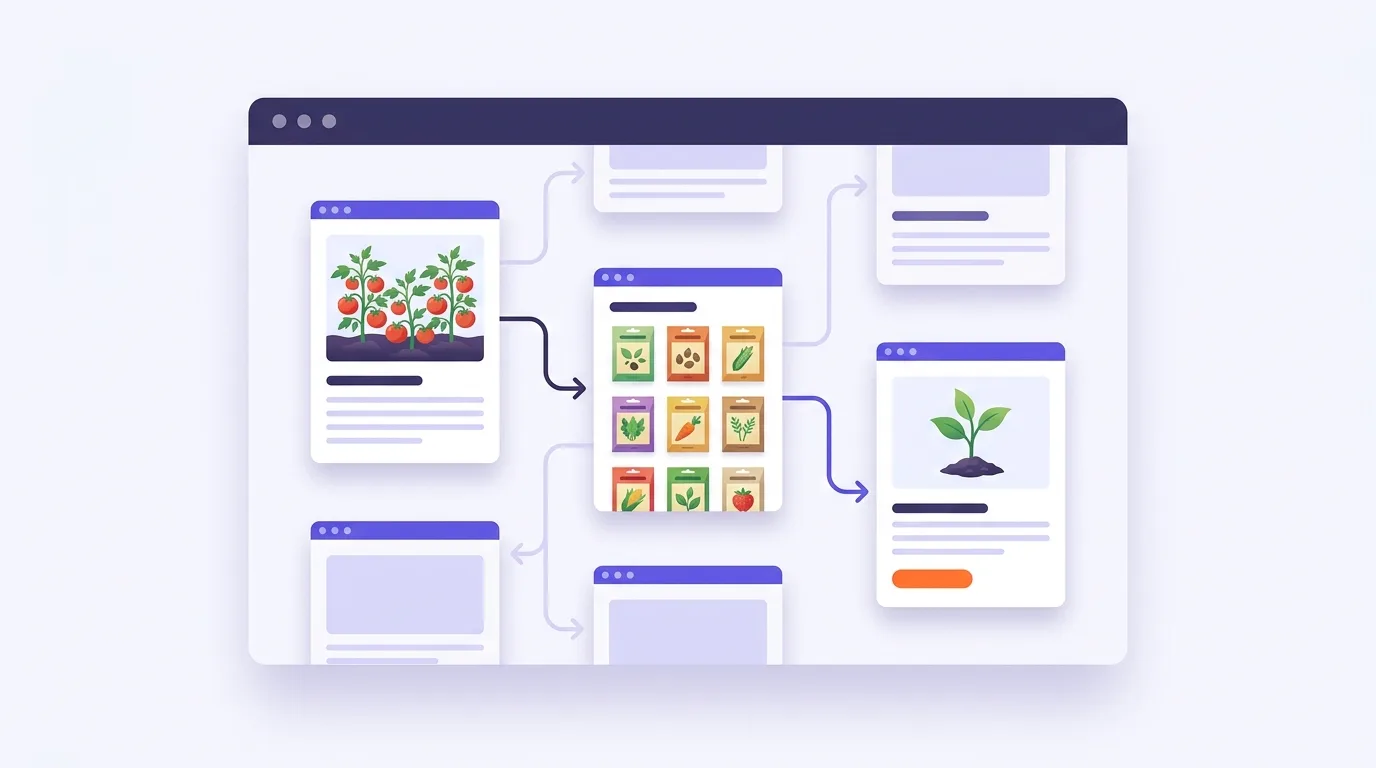
What is internal linking?
Internal linking means using hyperlinks to connect pages on the same website, as described by web.dev. For example, a gardening guide about growing tomatoes might link to a tomato seed category. That link gives readers a direct route from practical advice to relevant products.
Internal links appear within page content and in shared areas such as menus or footers. Their visible, clickable wording is called anchor text. In the gardening example, “tomato seeds” could be the anchor text.
Common types of internal links
A link’s type describes where it appears or what it does.
| Type | Role and example |
|---|---|
| Contextual links | Sit within page content, such as a growing guide linking to seeds. |
| Navigation links | Connect main destinations through menus and other shared page areas. |
| Breadcrumb links | Trace a path back to broader content, such as Home → Gardening → Tomatoes. |
| Related-content links | Suggest another useful page, such as a soil guide below a tomato article. |
Links to other websites are outbound links, rather than internal links. The way you arrange pages and navigation across your site is part of site architecture and navigation.
Why does internal linking matter for SEO?
Internal linking helps visitors find related information and gives search engines paths to discover pages. The links you choose also give context about how pages relate. These are useful signals, not promises of better rankings.
Visitor navigation
Navigation links help readers move through your site. Contextual links offer useful details at the point where readers need them. Both can bring less-visible pages to people who might otherwise miss them.
Page discovery
Internal links give search engines routes to pages. Finding a page isn’t the same as indexing or ranking it, as explained in how search engines work.
Contextual understanding
Anchor text and the words around it describe the relationship between linked pages. A relevant link helps readers know what to expect when they click.
Relative page importance
Incoming internal links point to a page from elsewhere on your site. Google can use the number of those links and the number of links needed to reach a page to infer its relative importance, according to Google Search Central.
Link equity is informal SEO shorthand for the idea that links can pass ranking value. It’s not a fixed amount you can measure. Google’s documented statement is narrower: link counts and paths can help it assess a page’s importance within your site. That statement doesn’t establish a set transfer of ranking value.
Even when you follow best practices, Google may not crawl or index a page, and it may not show it in search results. Google Search Essentials makes that limit clear.
Choose useful destinations and relevant source pages
Start with a page you want readers to find. Say your gardening site has a detailed soil-preparation guide, but the vegetable-growing guide never links to it. The paragraph about preparing the planting bed is a natural place for that link. A popular article about garden lighting may not be, despite its traffic.
- Choose destinations that serve a reader need. Your key service or category pages are a starting point. Include deeper guides when they answer a question readers are likely to have.
- Find source pages with a clear connection. Look for content where the destination would be a useful next step. A well-linked page is worth checking, but don’t add a link just because that page gets traffic.
- Place the link where the need arises. For the soil guide, that means the planting-bed paragraph rather than an unrelated introduction. When you publish a new page, revisit relevant older content so readers have a route to it.
- Record the proposed link. A simple planning table lets you check the reader’s need before you edit the page.
| Source page | Reader need | Destination | Anchor |
|---|---|---|---|
| Vegetable-growing guide | Prepare the planting bed | Soil-preparation guide | prepare soil for vegetables |
Google recommends that every important page receive a link from at least one other page on your site, and that you link related resources in context: Google Search Central.
If you have several guides on the same subject, use topic clusters and pillar pages to plan how they connect. Each link should still make sense where it appears.
Write descriptive anchors and place links in context
Good anchor text tells readers what they’ll find after the click. Put the link where that next page is useful, not wherever a matching keyword happens to appear.
Write anchors that fit the sentence
Use concise, descriptive wording that fits both pages and reads naturally in the sentence, as Google recommends.
| Before | After |
|---|---|
| Click here. | Before planting, learn how to prepare soil for vegetables. |
In the revised example, link “prepare soil for vegetables” to the soil-preparation guide. The wording tells readers what the guide covers without forcing extra keywords into the sentence.
Use relevant keywords when they describe the destination accurately. You don’t need an exact-match rule or an anchor-variation quota. If a link feels out of place, check whether the destination belongs there before you rewrite the anchor.
Clear link text supports web accessibility. Under W3C’s link-purpose guidance, readers should be able to understand a link’s purpose from its text alone or with context that software can identify. Generic wording isn’t always a failure, but descriptive wording can make the purpose clearer.
Treat linked images as links
When an image is a link, Google uses its alt attribute as anchor text, according to Google’s link guidance. Check that text as part of your link review. For advice on writing it, see image optimization.
Make internal links crawlable and point to preferred URLs
A link can work for a visitor without giving a search engine a reliable path. Check the HTML as well as the page it opens.
- Check the HTML. Google generally needs an HTML <a> element with an href attribute to crawl a link reliably, according to Google Search Central.
<a href=”/guides/soil-preparation/”>prepare soil for vegetables</a>
A clickable span or a button that relies only on an event handler isn’t the same as this link. Being able to click an element doesn’t prove that Google can crawl it.
Links added by JavaScript can be crawlable when they use <a> with href, as Google explains. Use the JavaScript SEO and rendering guide if links are missing from the rendered page.
- Use the preferred destination. Link directly to the live URL you want readers to reach, rather than through needless redirects. Google recommends pointing internal links consistently to canonical URLs instead of duplicate versions in its canonicalization guidance. Canonical tags identify a preferred version among duplicate pages. Update links when you move or remove content.
- Check whether the destination can be indexed. A valid link doesn’t override a rule that blocks indexing. If a page should appear in search, check its indexability and noindex controls.
Common internal linking mistakes to avoid
More links aren’t always more useful. Look for links that confuse readers and missing paths to pages they need.
- Drop fixed link quotas. Google specifies no ideal number of links per page. Add links when they serve a clear purpose, and check that the page still reads well (Google Search Central).
- Avoid rigid crawl-depth rules. Crawl depth is the number of links needed to reach a page from a starting point. Investigate long paths to important content rather than impose a universal cutoff.
- Don’t force links. An unrelated sales page doesn’t become useful just because you can fit its keyword into a paragraph. Avoid keyword-heavy link blocks too; Google recommends natural, descriptive anchors that fit both pages (Google Search Central).
- Don’t treat link types as interchangeable. Navigation links give readers repeatable routes. Contextual links support the task at hand. A large footer won’t replace useful links within your content.
- Judge destinations by purpose. An account page can be a useful destination even if you don’t want it in search results. That’s different from linking to a broken page or an unwanted duplicate.
For site-wide path problems, review your site architecture and navigation. Check whether readers can reach key pages through clear menus and relevant content.
How do you audit and measure internal linking?
An internal linking audit checks where your links go and which pages are hard to reach. Use Screaming Frog SEO Spider or a comparable crawler to collect:
- Source and destination URLs
- Anchor text
- Response status
- Incoming internal links
- Crawl depth
Compare the crawl with your page inventory, fix the gaps that matter most, then crawl again to check your work.
Find and prioritize gaps
A page in your inventory but missing from the crawl may be an orphan: a page with no incoming internal links. Check it before drawing that conclusion, because crawl settings or access rules can also affect what a tool finds.
- Compare known pages with discovered pages. Use your CMS URL inventory alongside the crawl. A crawl that only follows links can’t reveal pages it has no route to. XML sitemaps can provide another set of URLs to compare.
- Review important pages with few or no incoming links. Google recommends linking to every important page (Google). Check relevant source pages for useful placements rather than adding links at random.
- Repair broken paths. Fix broken destinations and needless redirect hops using the redirect and broken-link guidance.
- Check duplicate URLs. Replace links to unwanted variants with links to the canonical URL, in line with Google’s guidance.
Separate implementation from outcomes
First, confirm that the edits work. Re-crawl to check repaired links and whether previously missed pages are now reachable. Inspect any links added by scripts if the crawler still can’t find them.
Then track the affected pages’ search performance and useful onward visits. For search reporting, see Search Console setup and reporting. Keep a record of your edits so you can compare performance before and after them, but don’t assume links caused every change. Content edits and shifts in demand can affect the same pages.
Revisit internal linking when you publish or change URLs. Older content may need new links, and existing links may need a different destination.
Frequently asked questions
Can you link to the same internal page more than once in an article?
Yes, when each placement helps the reader. A link near the start of a long page may still be useful later, where a reader needs the resource again. Skip repeats that add no value. Google sets no ideal link count, so a quota isn’t a useful reason to add another link (Google Search Central).
Should internal links open in a new tab?
A reasonable editorial default is to keep internal links in the same tab. If leaving the page would interrupt an active task, such as filling in a form, you might choose a new tab instead. In that case, consider telling readers what to expect before they click. Treat this as a design choice to assess in context, not an SEO requirement.
Are relative URLs or absolute URLs better for internal links?
A relative URL gives a path based on the current page or site. An absolute URL includes the full address. Either can work. Choose a consistent approach and test that links open the intended pages. What matters for duplicate URLs is pointing links to the preferred version, as Google Search Central recommends.
Can automated internal linking tools replace manual review?
No. A tool can suggest a link based on matching words without knowing whether the destination answers the reader’s question. Review that match, then read the linked sentence aloud to check whether it sounds natural. Google recommends relevant, descriptive anchor text without keyword stuffing.